BinAssist · Actions
Action suggestions, rename flows, and structured application.
Actions Tab Reference
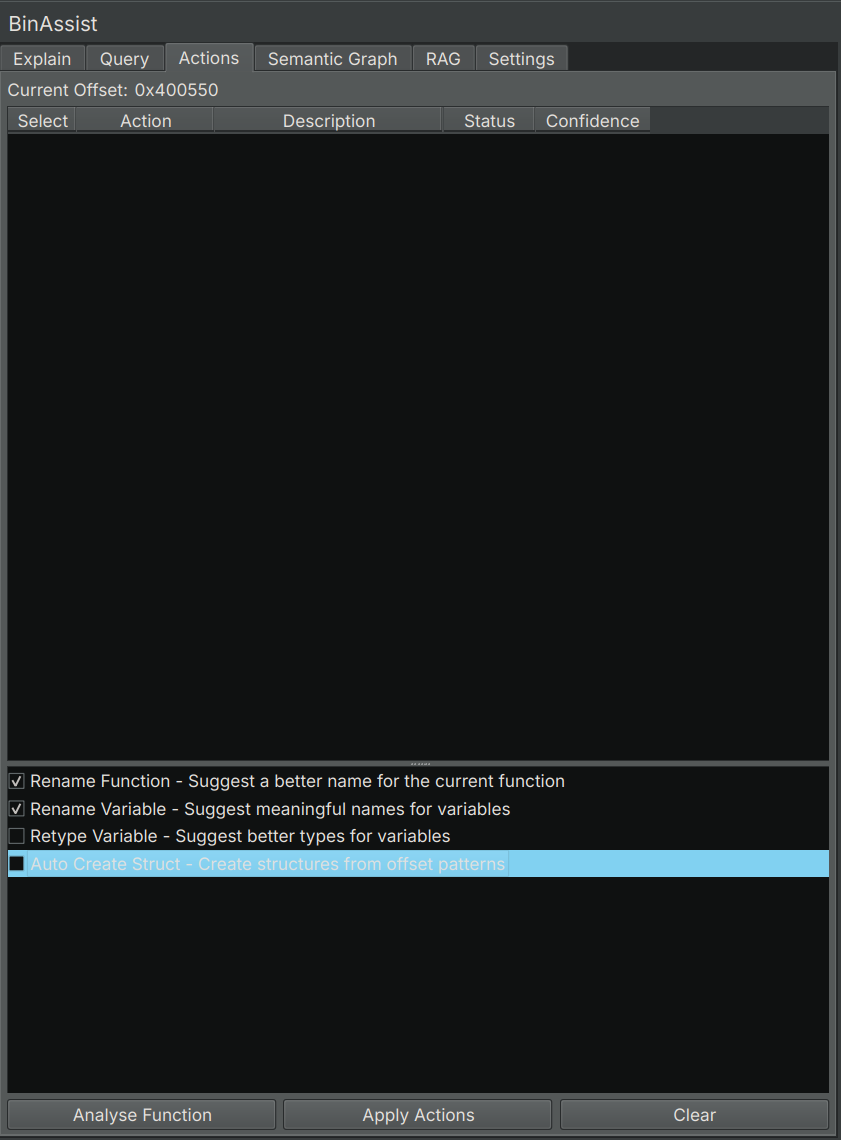
The Actions tab provides LLM-powered suggestions for improving your binary analysis, including renaming functions and variables, retyping variables, and creating structures.
Purpose
The Actions tab automates common reverse engineering tasks by using the LLM to:
- Suggest meaningful names for functions based on their behavior
- Propose descriptive variable names based on usage
- Recommend appropriate data types for variables
- Generate structure definitions from data patterns
Each suggestion includes a confidence score, allowing you to review before applying.
Action Types
Rename Function
Analyzes the current function's behavior and suggests a semantically meaningful name.
Example: A function that parses HTTP headers might be renamed from sub_401000 to parse_http_headers.
Rename Variable
Examines how variables are used within the function and proposes descriptive names.
Example: A variable used as a loop counter might be renamed from var_8 to loop_index.
Retype Variable
Analyzes variable usage patterns and recommends appropriate data types.
Example: A variable used to store string pointers might be retyped from int64_t to char*.
Auto Create Struct
Identifies data access patterns that suggest structure usage and generates structure definitions.
Example: Repeated accesses at offsets 0, 8, and 16 from a base pointer might suggest a structure with three fields.
UI Elements
Action Selection
Checkboxes at the top let you select which action types to include in the analysis:
- Check the actions you want suggestions for
- Uncheck actions you don't need
- At least one action must be selected
Analyse Button
Click Analyse to run the LLM analysis for the selected action types on the current function.
Results Table
After analysis, suggestions appear in a table:
| Column | Description |
|---|---|
| Select | Checkbox to include in batch apply |
| Action | The type of action (Rename Function, etc.) |
| Target | What the action affects (function name, variable name) |
| Suggestion | The LLM's recommendation |
| Confidence | Score from 0.0 to 1.0 |
| Status | Result after applying (Success, Failed, Pending) |
Apply Button
Click Apply Selected to apply all checked suggestions to the binary.
Confidence Scores
Each suggestion includes a confidence score indicating the LLM's certainty:
| Score Range | Interpretation |
|---|---|
| 0.9 - 1.0 | High confidence - likely accurate |
| 0.7 - 0.9 | Good confidence - review recommended |
| 0.5 - 0.7 | Moderate confidence - careful review |
| < 0.5 | Low confidence - may be incorrect |
Use confidence scores to prioritize your review. High-confidence suggestions are generally safe to apply, while lower scores warrant more scrutiny.
Workflow
- Navigate to a function in Binary Ninja
- Open the Actions tab
- Select the desired action types
- Click Analyse
- Review the suggestions and confidence scores
- Check the suggestions you want to apply
- Click Apply Selected
- Verify the changes in Binary Ninja
Status Indicators
After applying suggestions, the Status column shows:
- Success: The action was applied successfully
- Failed: The action could not be applied (e.g., invalid name)
- Skipped: The action was not selected
Tool-Based Architecture
Behind the scenes, the Actions tab uses LLM tool calling to generate precise suggestions. This ensures:
- Structured output that can be reliably parsed
- Clear separation between suggestion and application
- Detailed information for each suggestion
Related Documentation
- Explain Tab - Understanding functions before renaming
- Query Tab - Asking questions about naming choices
- Settings Tab - Configuring LLM providers