BinAssist · RAG
Knowledge augmentation and document-assisted workflows.
RAG Tab Reference
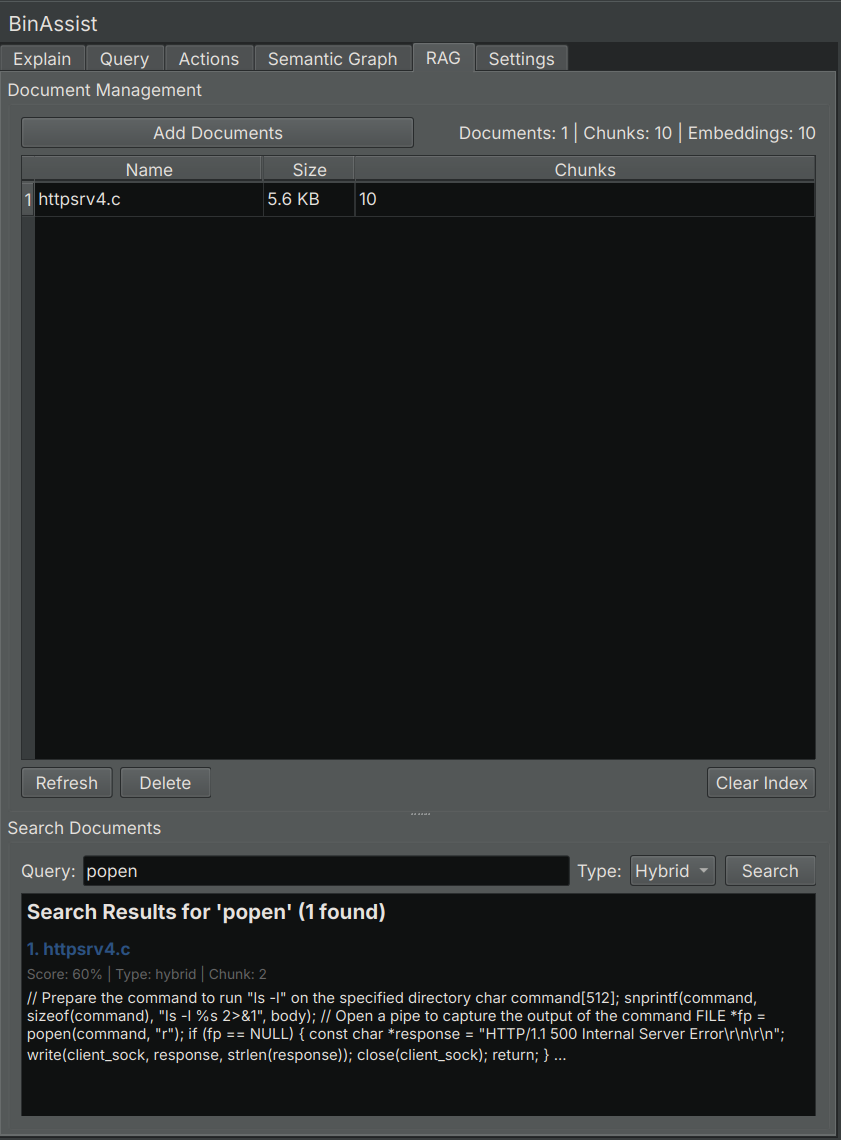
The RAG (Retrieval-Augmented Generation) tab manages external documentation that can be used to enhance LLM responses with relevant context.
Purpose
RAG allows you to import documentation relevant to your analysis, such as:
- API documentation for libraries used by the binary
- Protocol specifications
- Vendor documentation
- Research papers
- Previous analysis notes
When RAG is enabled in the Explain or Query tabs, relevant portions of your indexed documents are included in the LLM prompt, improving response quality.
How RAG Works
- You import documents into BinAssist
- Documents are split into chunks and indexed
- When you ask a question with RAG enabled, BinAssist searches for relevant chunks
- Relevant chunks are included in the LLM prompt
- The LLM uses this context to provide better answers
UI Elements
Document Table
Lists all imported documents:
| Column | Description |
|---|---|
| Name | Document filename |
| Size | File size |
| Chunks | Number of indexed chunks |
Select a document to enable the Refresh and Delete buttons.
Management Buttons
| Button | Description |
|---|---|
| Add Document | Import a new document |
| Refresh | Re-index the selected document |
| Delete | Remove the selected document from the index |
Search Section
Test the RAG index by searching for content:
- Search Input: Enter keywords or phrases
- Search Mode: Select the search algorithm
- Results: Display matching chunks with relevance scores
Statistics Panel
Shows index statistics:
| Statistic | Description |
|---|---|
| Documents | Number of indexed documents |
| Chunks | Total chunks across all documents |
| Embeddings | Vector embeddings count |
Index Management
- Clear Index: Delete all documents and reset the RAG index
Supported Document Types
BinAssist can index the following document types:
| Type | Extension | Notes |
|---|---|---|
| Text | .txt | Plain text files |
| Markdown | .md | Markdown formatted documents |
.pdf | PDF documents (future) |
Search Modes
When searching or retrieving context, BinAssist supports three search modes:
| Mode | Description | Best For |
|---|---|---|
| Hybrid | Combines text and vector search | General use (recommended) |
| Text | Keyword-based full-text search | Exact term matching |
| Vector | Semantic similarity search | Conceptual queries |
Adding Documents
- Click Add Document
- Select a file from your system
- Wait for indexing to complete
- The document appears in the table
Documents are automatically chunked for efficient retrieval. Large documents may take a moment to process.
Using RAG in Analysis
To use RAG context in your analysis:
- Import relevant documents in the RAG tab
- Switch to the Explain or Query tab
- Enable the RAG checkbox
- Perform your analysis or ask your question
- The LLM receives relevant document context automatically
Best Practices
Document Selection
Import documents that are directly relevant to your analysis:
- API documentation for libraries the binary uses
- Protocol specs for network protocols in use
- Vendor manuals for the software being analyzed
- Research papers on relevant techniques or malware families
Document Size
- Smaller, focused documents work better than large general references
- Consider splitting very large documents into focused sections
- Remove irrelevant sections before importing
Refreshing Documents
Use Refresh when:
- The source document has been updated
- You want to re-chunk with different settings
- The index seems to be returning poor results
Index Storage
The RAG index is stored in the BinAssist data directory (see Settings Tab for the path). It persists across sessions, so you don't need to re-import documents each time.
Related Documentation
- Explain Tab - Using RAG with function explanations
- Query Tab - Using RAG with chat queries
- Settings Tab - Configuring RAG storage path