GhidrAssist · Query
Query tab usage and contextual LLM workflows.
Query Tab Reference
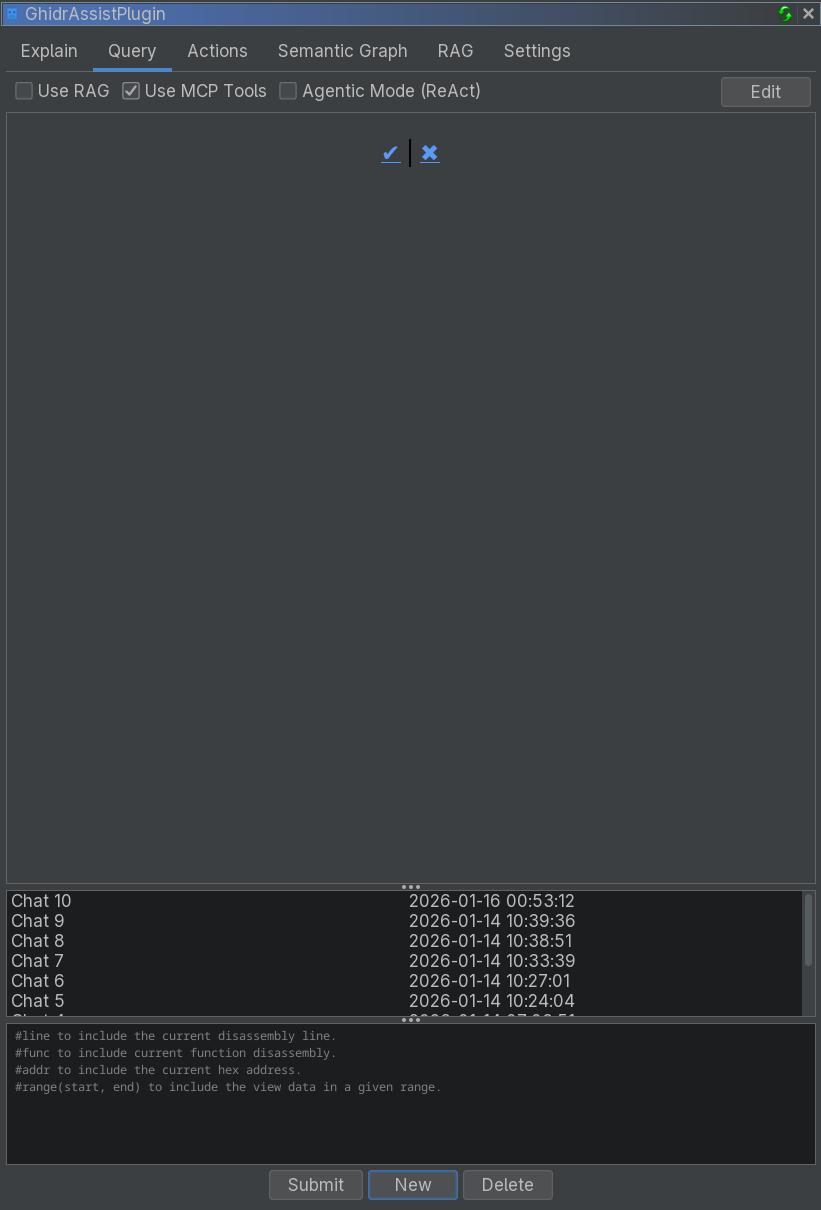
The Query tab provides an interactive chat interface for questions about your binary, with context macros, MCP tools, and the ReAct agent.
Purpose
The Query tab enables free-form conversation with the LLM about your binary. It supports:
- Follow-up questions and multi-turn chats
- Context macros for function and address data
- MCP tool calling for interactive analysis
- ReAct autonomous agent for complex investigations
UI Elements
Chat History
The left panel shows saved conversations:
- New: Start a new chat
- Delete: Remove selected chat
- Each row shows a description and timestamp
Response Area
The main panel displays:
- Your prompts
- LLM responses rendered as markdown
- Tool call outputs when MCP is enabled
Input Area
At the bottom:
- Text input field
- Submit button (or Ctrl+Enter)
- Stop button (visible while generating)
Enhancement Options
| Option | Description |
|---|---|
| Use RAG | Include document context from the RAG index |
| Use MCP Tools | Enable tool calling |
| Agentic Mode (ReAct) | Enable autonomous investigation |
Context Macros
Macros are replaced with binary context before the query is sent:
| Macro | Description |
|---|---|
#func | Current function code (decompiler or disassembly) |
#addr | Data at the current address |
#line | Current line (decompiler or disassembly) |
#range(start, end) | Data in an address range |
Example:
What vulnerabilities exist in #func?
MCP Tool Calling
When Use MCP Tools is enabled, the LLM can call tools to gather information:
Typical tool usage:
- Decompile current function
- Get cross-references
- Navigate to addresses
- Query the semantic graph
ReAct Agent (Agentic Mode)
The ReAct agent performs multi-step investigations:
- Plan: Create investigation steps
- Investigate: Call tools to gather information
- Reflect: Adjust plan if needed
- Synthesize: Provide final answer
Use ReAct for:
- Complex investigations
- Vulnerability hunting
- Call graph analysis
- Exploratory reverse engineering
Edit Mode
The Query tab supports editing chat history:
- Click Edit to enter markdown mode
- Modify content and save
- Changes update the stored chat history