GhidrAssist · Semantic Graph Workflow
Graph building and exploratory reverse-engineering workflow.
Workflow: Building a Semantic Graph
This guide shows how to build and use GhidrAssist's semantic graph for structured analysis.
Overview
The semantic graph captures:
- Function summaries and call relationships
- Security flags and activity profiles
- Taint and network flow paths
- Function communities
It can be used directly in the Semantic Graph tab or via MCP queries.
Step-by-Step Workflow
Step 1: Open the Semantic Graph Tab
Navigate to the Semantic Graph tab in GhidrAssist.
Step 2: ReIndex the Binary
Click ReIndex Binary to build the initial graph.
This extracts:
- Functions and addresses
- Call relationships
- Imports/exports
Step 3: Run Semantic Analysis
Click Semantic Analysis to generate LLM summaries and security metadata.
Step 4: Run Security Analysis
From the Manual Analysis panel, click Security Analysis to find source-to-sink paths.
Step 5: Run Network Flow Analysis
Click Network Flow Analysis to track data flow through network send/recv APIs.
Step 6: Run Community Detection
Click Community Detection to group related functions using Label Propagation.
Exploring the Graph
List View
- Browse all functions and summaries
- Review security flags
- Navigate directly to code
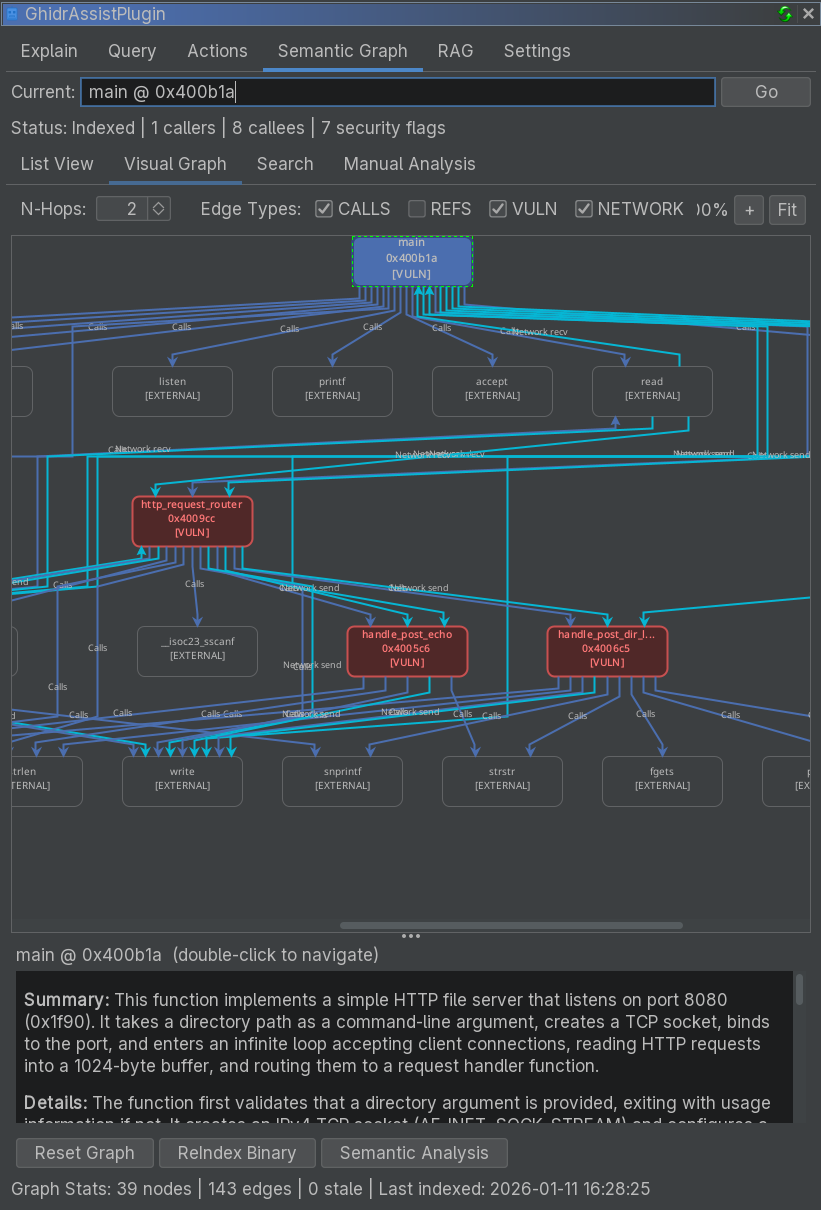
Visual Graph
- Explore relationships visually
- Adjust depth and focus on critical nodes
Search
Search summaries and function names:
Using the Graph in Queries
With MCP enabled in Query tab, the LLM can:
- Search summaries
- Find related functions
- Trace call chains
- Identify risky code paths
Sharing via SymGraph
If you want to contribute:
- Open the SymGraph tab
- Select Graph
- Click Push to SymGraph
See SymGraph Workflow.